> For the complete documentation index, see [llms.txt](https://help.bukkii.io/llms.txt). Markdown versions of documentation pages are available by appending `.md` to page URLs; this page is available as [Markdown](https://help.bukkii.io/getting-started/scheduling.md).
# Scheduling
Your calendar allows you to schedule appointments with just a few clicks.
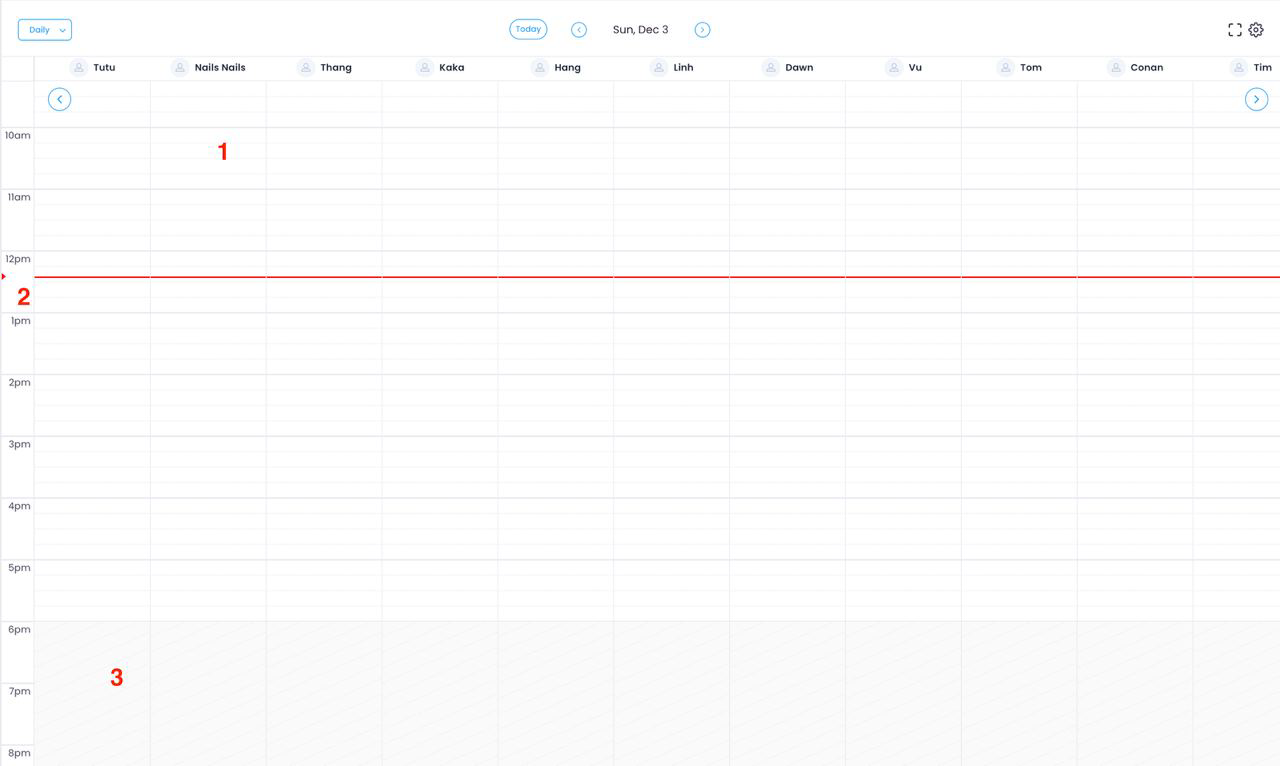
1. Available appointment slots are represented by the white boxes.
2. The red line highlights the current date and time. Gray spaces represent non-working hours.
3. Gray spaces represent non-working hours.
{% hint style="info" %}
Note: If a customer schedules an appointment through your Booking Page, the details will automatically be added to your calendar. This way, you won't have any double bookings!
{% endhint %}
### Creating an Appointment
* Click anywhere on your calendar to create a new appointment.
* A detailed appointment window will appear. It includes the date and time, service, staff member, and a space to add notes. Click 'Continue' to assign a customer.
* You can add a new customer or search for an existing one. If the customer's information is already saved in Bukkii, it will be automatically filled in.
* Click 'Save,' and the appointment will appear in your calendar.